If you do not yet have a job on campus:
Access the Student Job Board

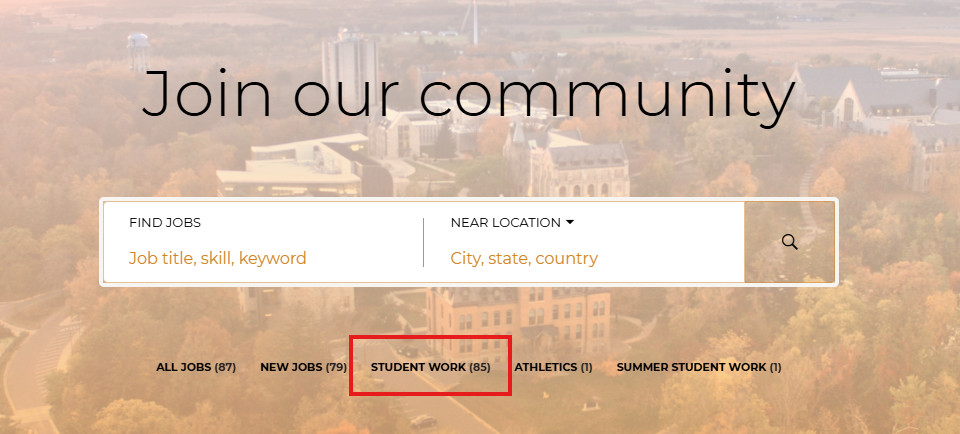
Select the “Student Work” button.
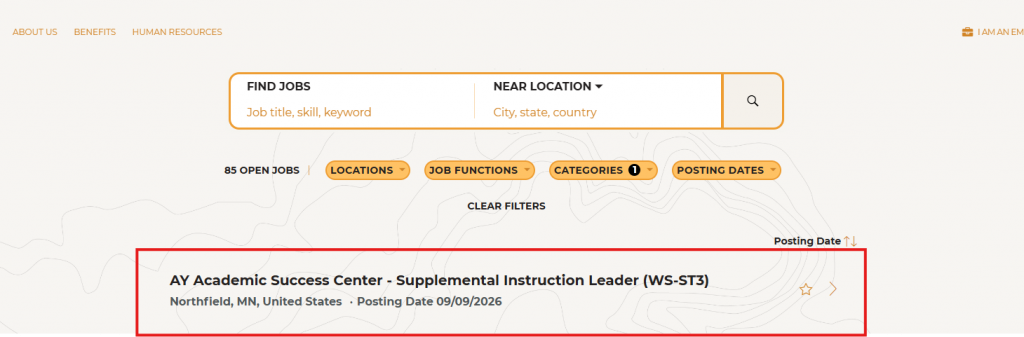
Select the job to which you would like to apply:
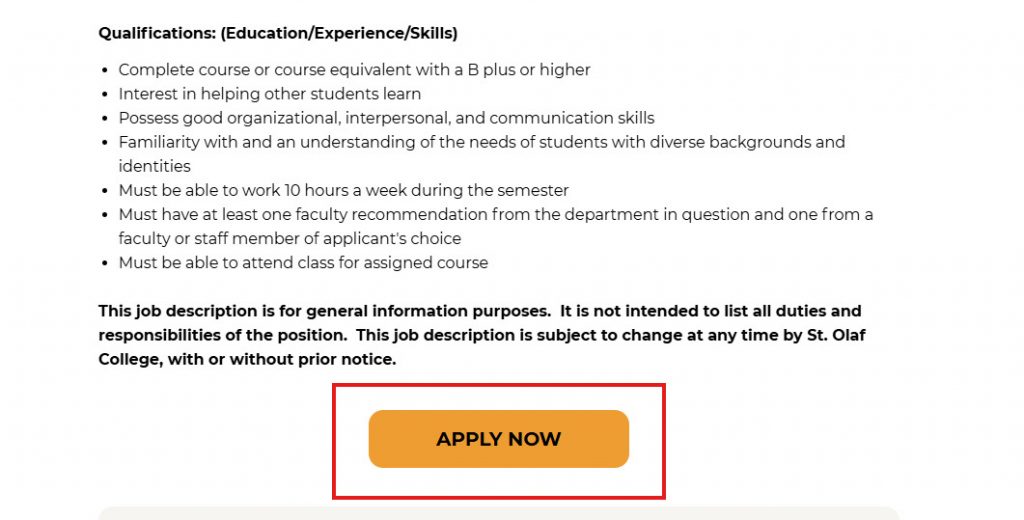
Scroll to the bottom of the job description and click the “Apply” button.
If you have already been offered a job on campus and have access to Oracle:
Access the Student Job Board:
Select the “I AM AN EMPLOYEE” button.

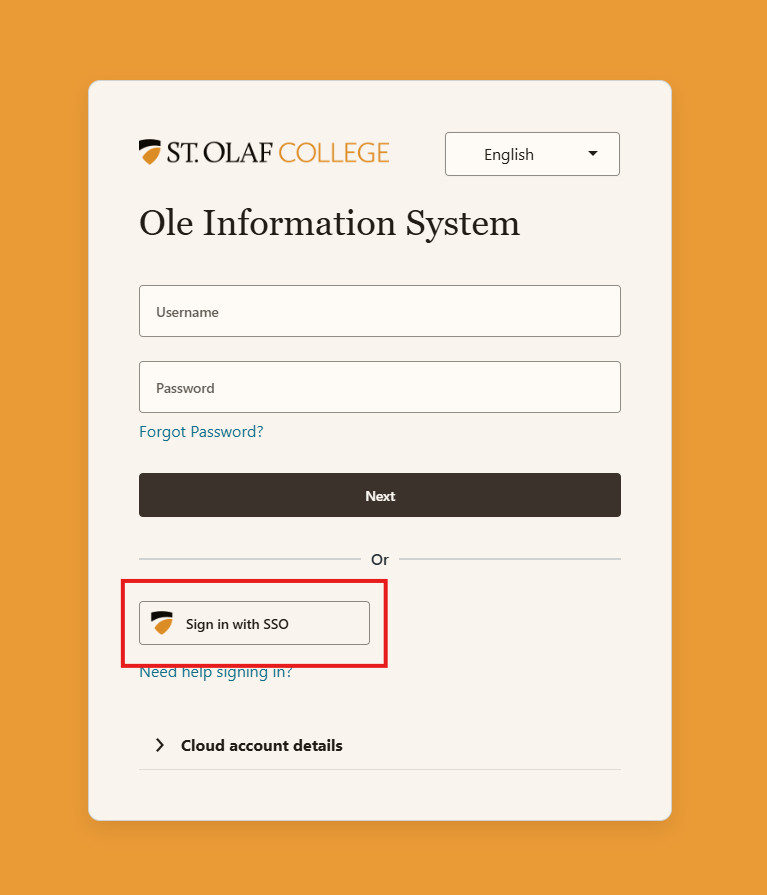
Log in to OIS using the “Sign in with SSO” button.
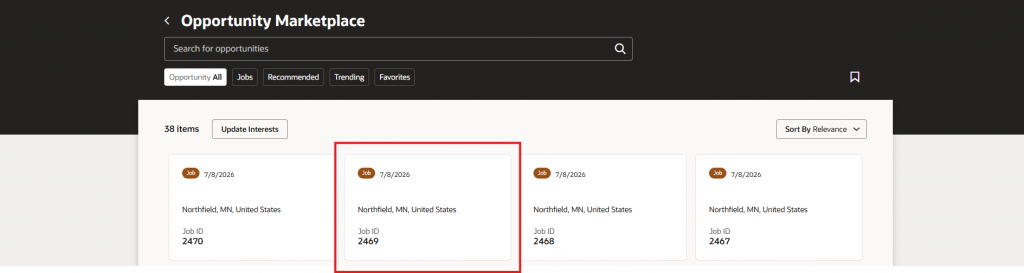
Select the the job you are interested in from the Opportunity Marketplace under the “Career Opportunities” tile.
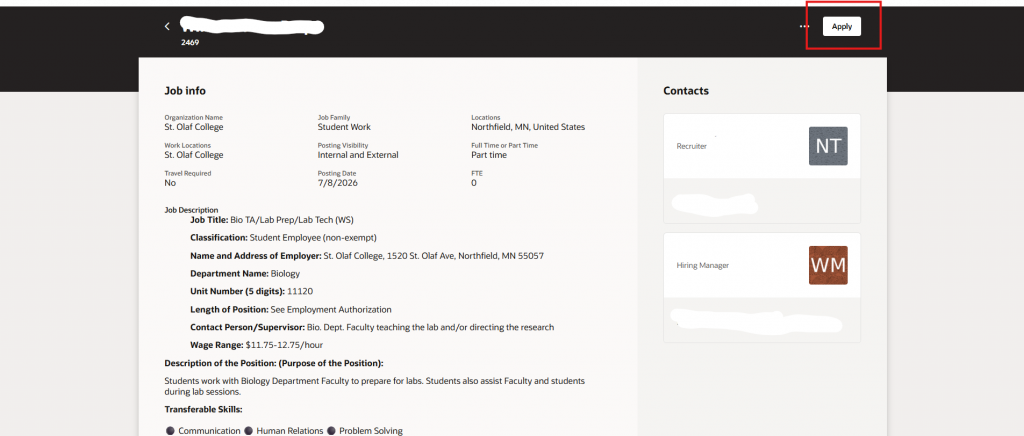
Click the “Apply” button in the top right corner of the job description page.
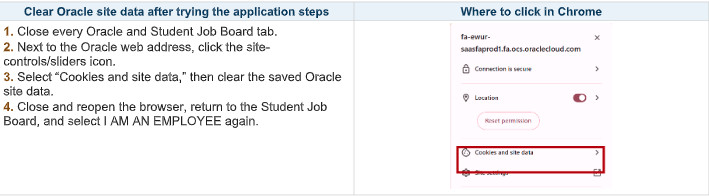
If your application will not submit, these steps may help:
- Close every Oracle and Student Job Board tab.
- Next to the Oracle web address, click the site-controls/sliders icon.
- Select “Cookies and site date,” then clear the saved Oracle site data.
- Close and reopen the browser, return to the Student Job Board, and select I AM AN EMPLOYEE again.