Tuition Deduction – Redwood
Last Updated: 04/16/2026
Navigation: Me → Quick Actions → Show More → Compensation → Manage Personal Contributions
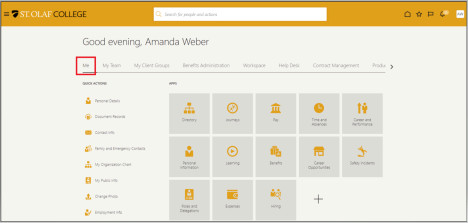
From “Me,” find Quick Actions on the left-hand side of your screen.
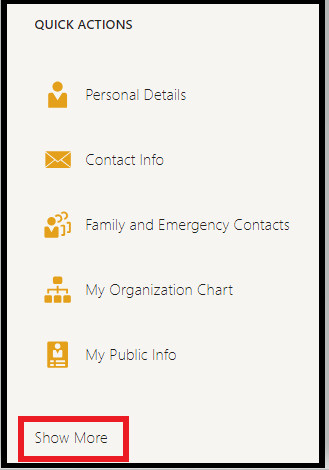
Under “Quick Actions,” select “Show More.”
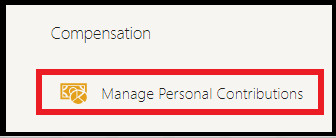
Scroll down to “Compensation” and select “Manage Personal Contributions.”
Adding a Tuition Deduction
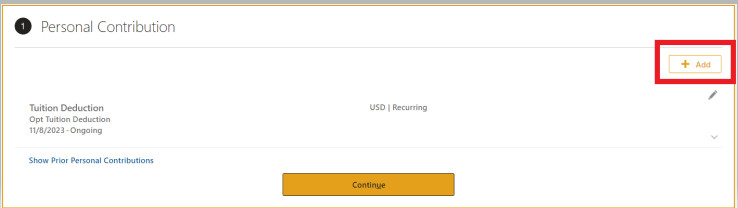
On the “Personal Contribution” screen, click on the “Add” button on the upper-right-hand corner of your screen.
For “Plan,” select “Tuition Deduction.”
For “Option,” select “Opt Tuition Deduction.”
For “Start Date,” click on the calendar and select your “Start Date.”
Then click “OK.”
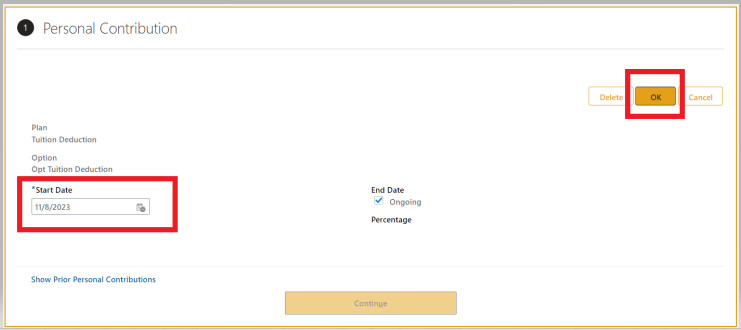
To choose an “End Date,” uncheck the box next to “Ongoing” and enter an End Date.
Otherwise, the blue check next to “Ongoing” means that your student employee wages will continue to be applied to your tuition under the end of the academic year.
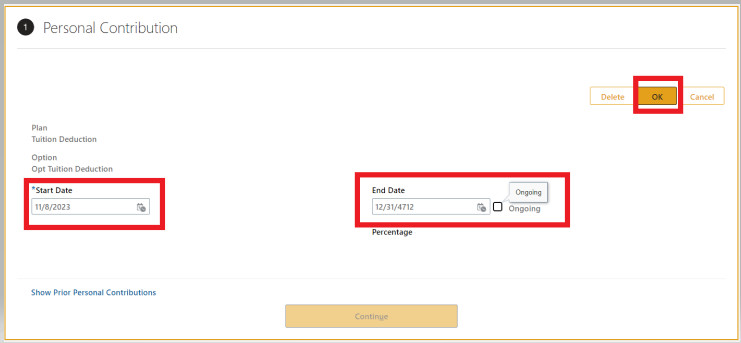
Then click “OK.”
Then click “Submit.”

Stopping a Tuition Deduction
If you are currently set up for a Tuition Deduction, you will see a screen like the one below.
If you would like to stop directing your pay toward your tuition as a Tuition Deduction, click on the Pencil icon on the far right-hand side of your screen.
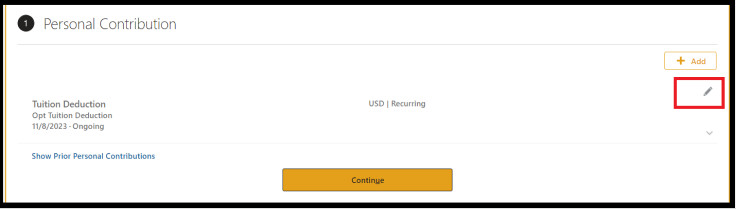
You can “Delete” the election.
OR
Under “End Date,” you can uncheck the box to the left of “Ongoing,” and then choose and enter an End Date. Be sure to click OK.
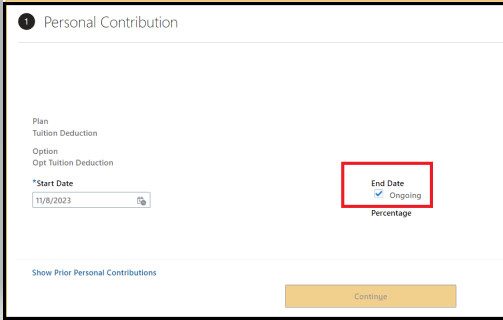
Then click “Submit.”