View Approval History – Redwood
Last Updated: 04/16/2026
Navigation path: Me → Time and Absences → Existing Time Cards
Click on the “Me” tab, then “Time and Absences.”
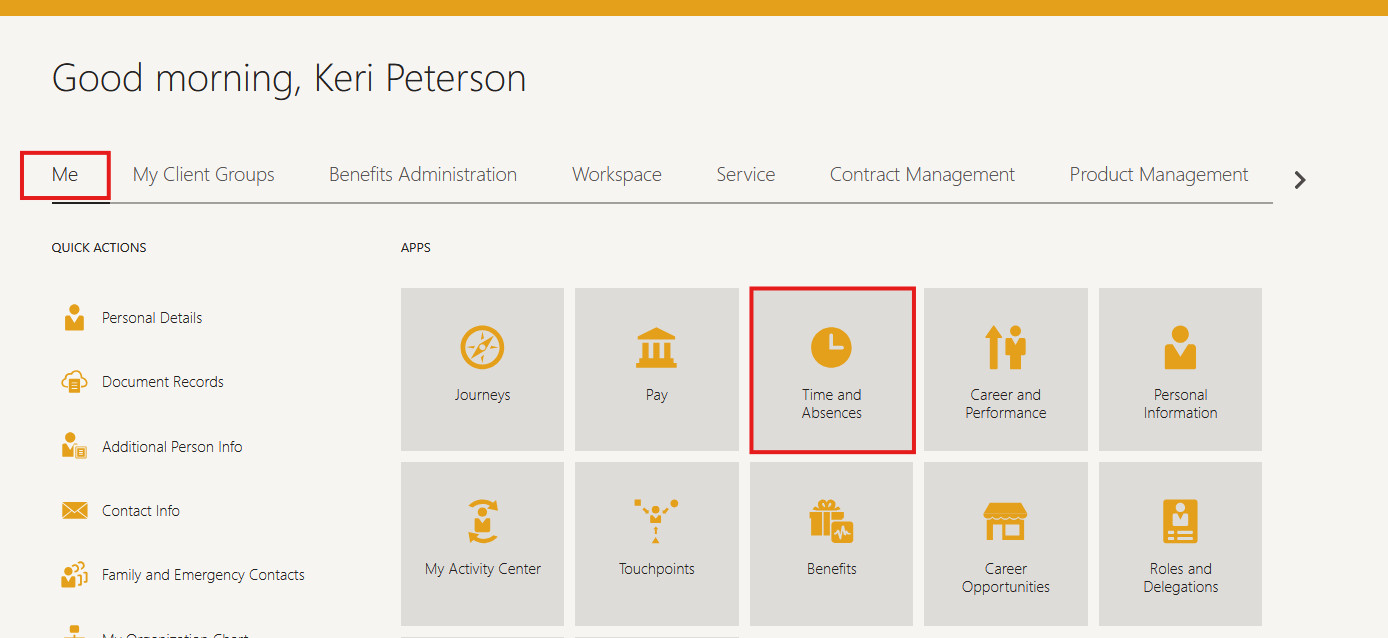
Select “Existing Time Cards.”
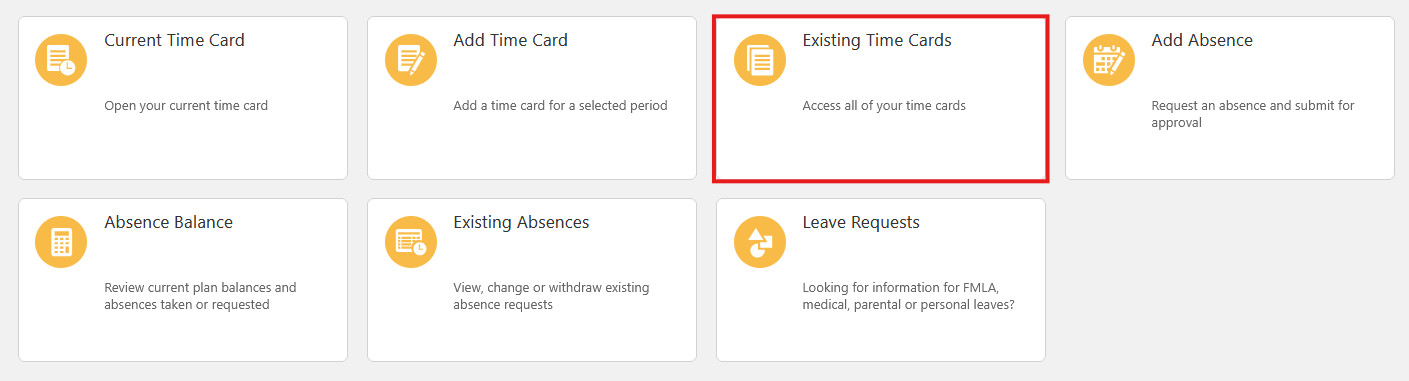
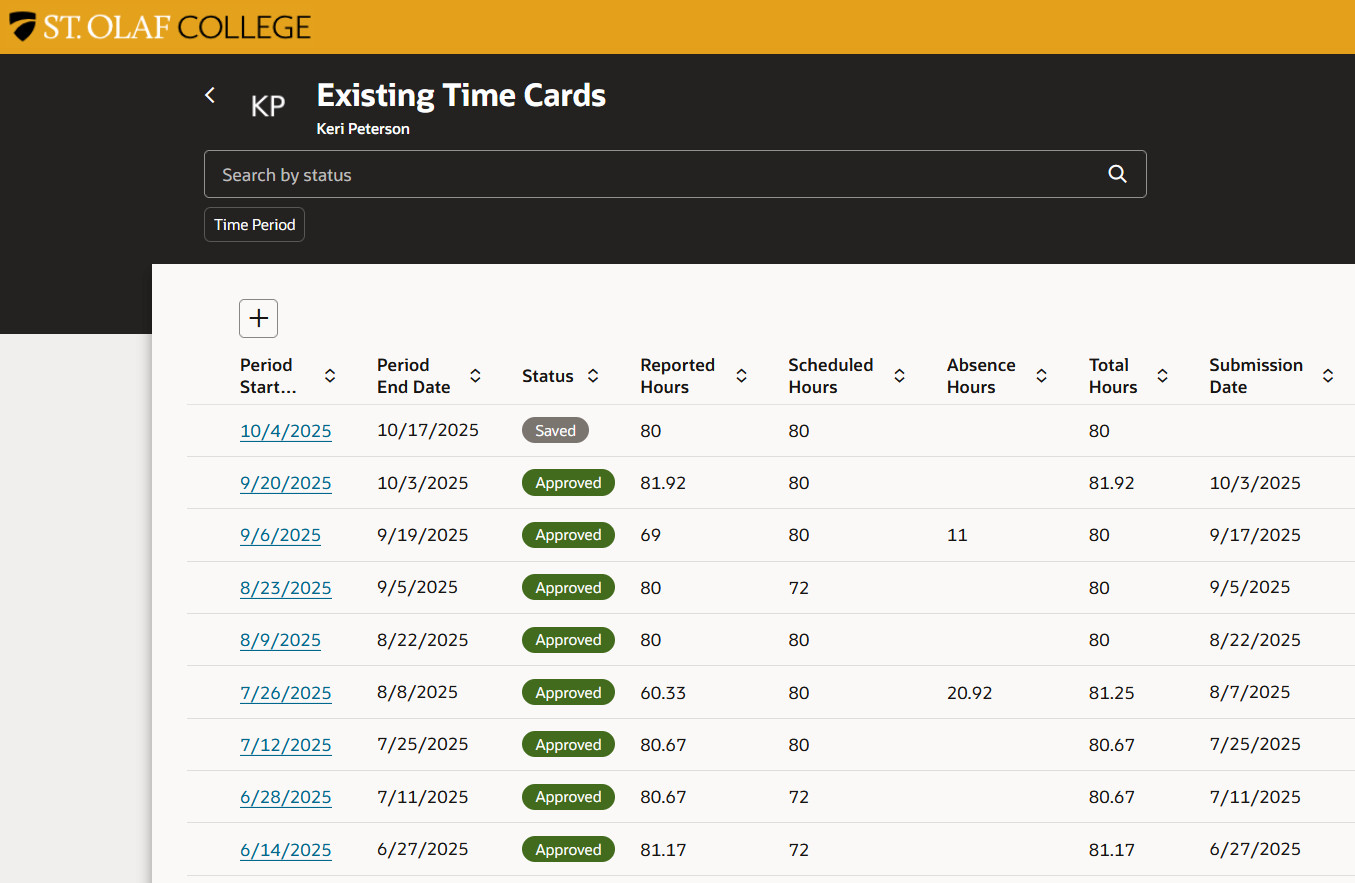
Existing timecards will open with a default date-range filter. Clear the filter to see all timecards.
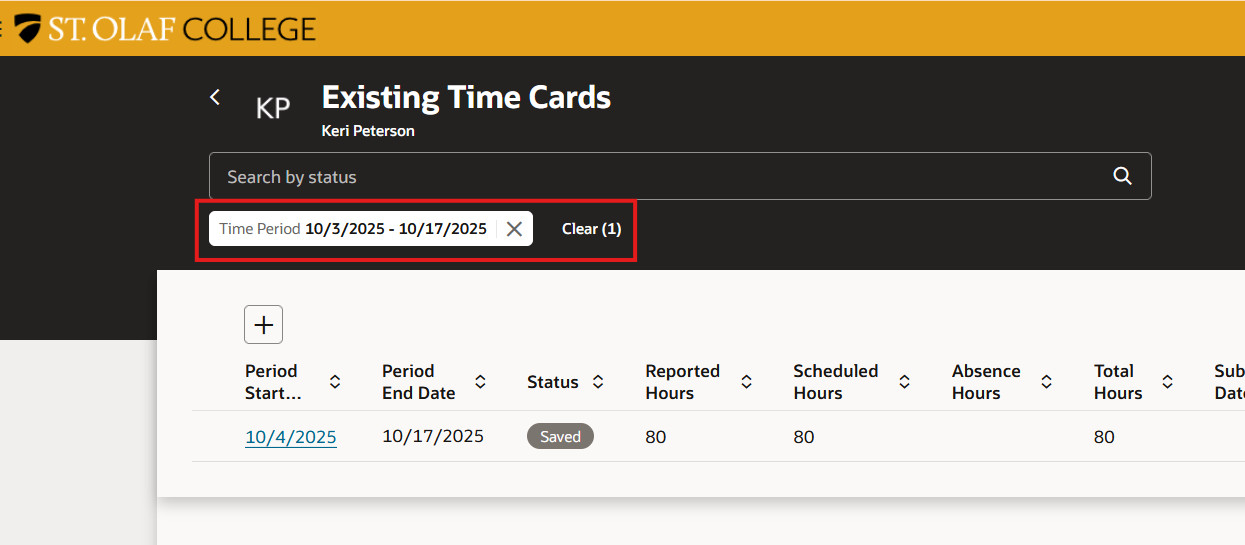
It will look like this after the filter is cleared.
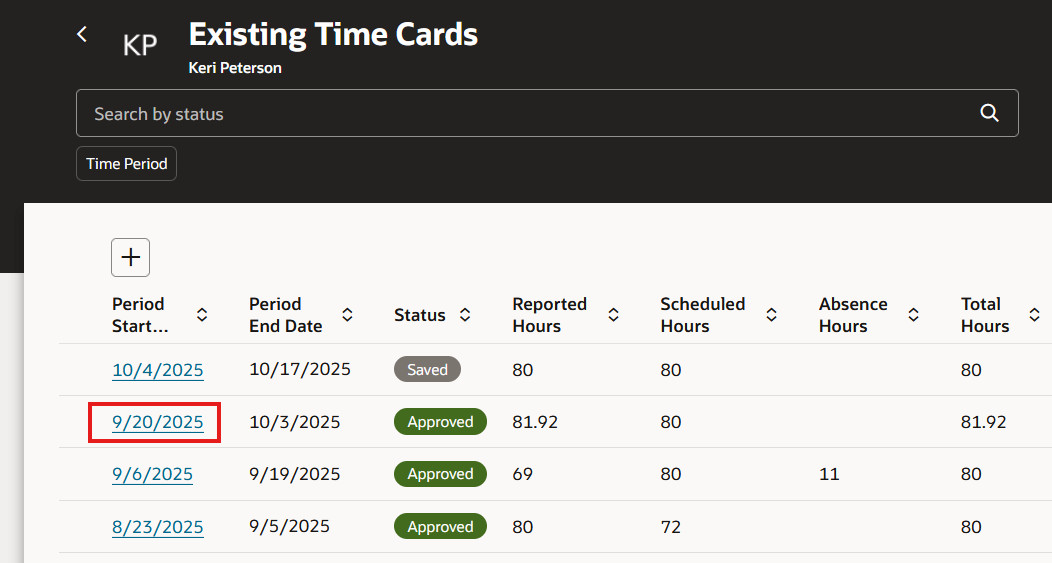
Click the start date of the affected pay period to open the timecard.
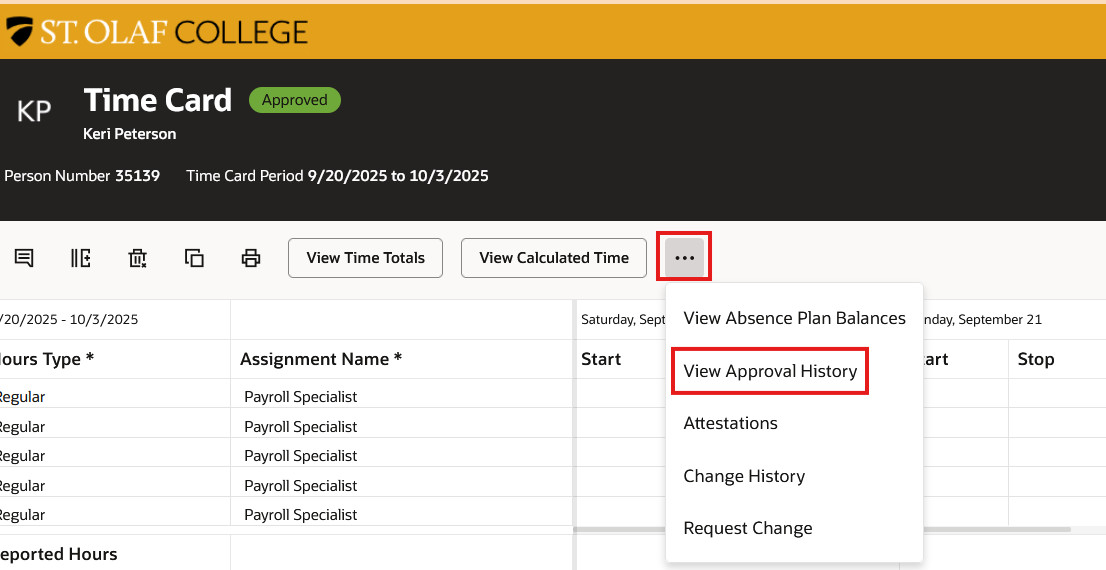
Click the three dots near the top of the timecard, and select “View Approval History.”
You will be able to view the approval workflow on the right side of the screen. If you have multiple supervisors, you will be able to see who has or has not approved the timecard.
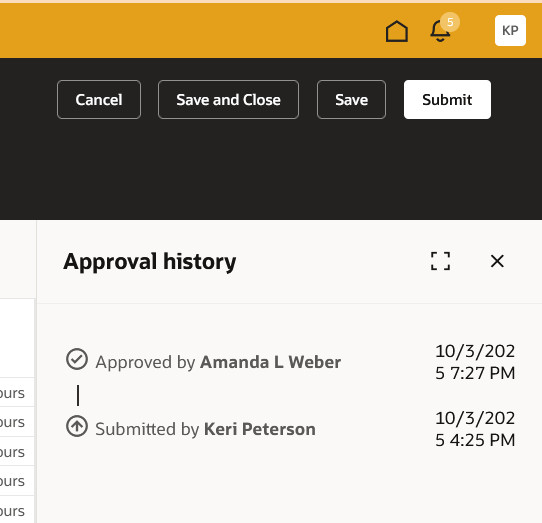
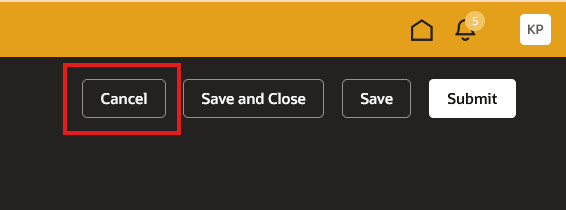
Note: Once you have opened a submitted or approved timecard, you MUST use “Cancel” to close it. If you use “Save and Close,” the timecard will revert back to a saved status and it will need to be resubmitted and reapproved.