W-4 – Redwood
Last Updated: 04/16/2026
Navigation path: Me → Quick Actions → Show More → Pay → Tax Withholding OR Me → Pay → Tax Withholding tile
From the home screen: click on the “Me” tab to see all Employee Self-Service applications.
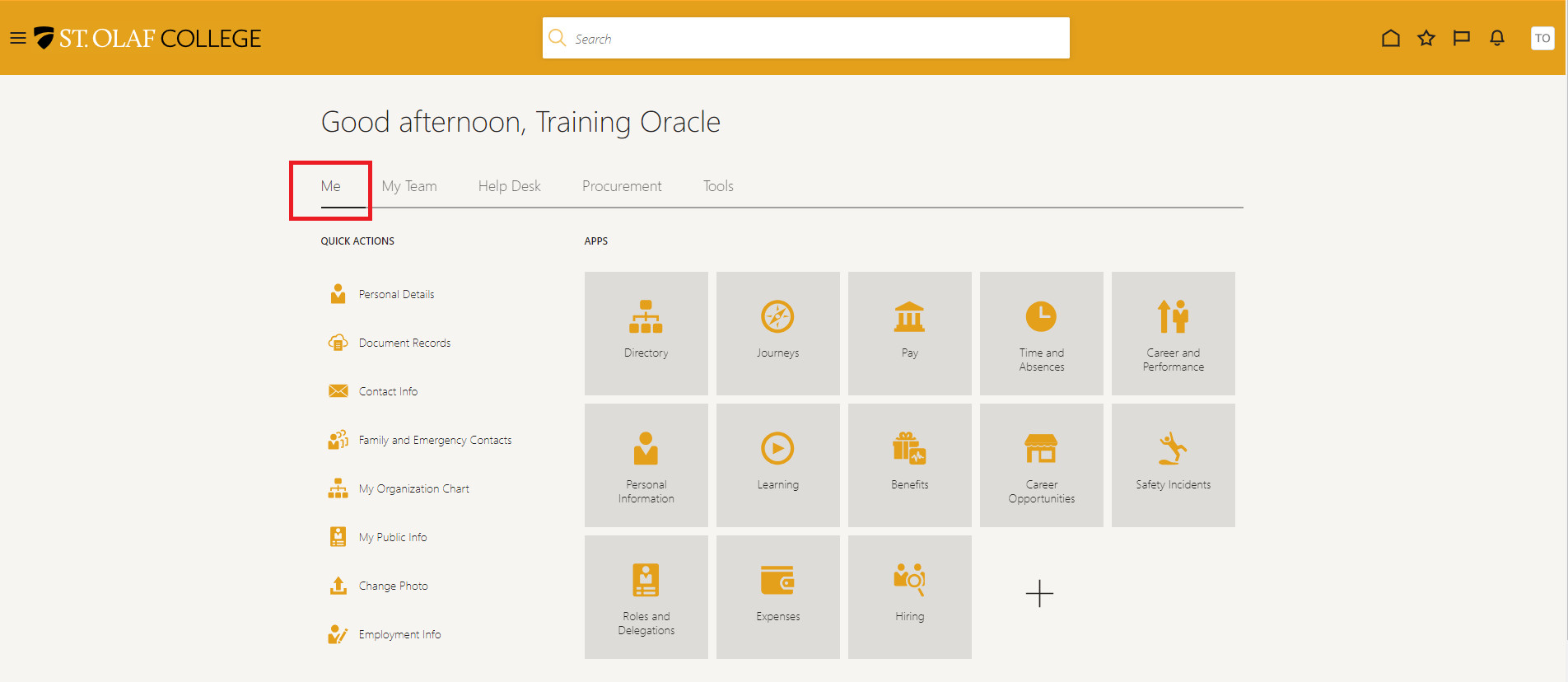
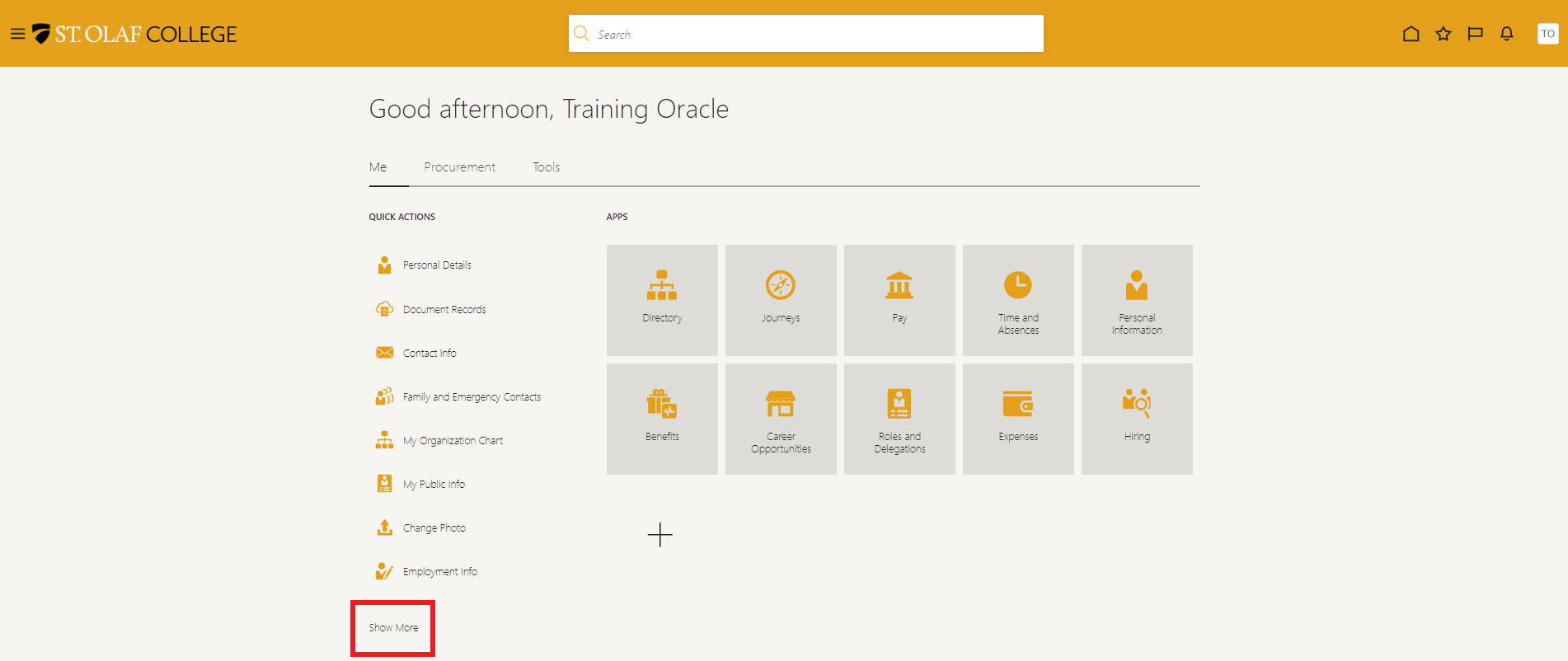
Click on the “Show More” icon listed under “Quick Actions.”
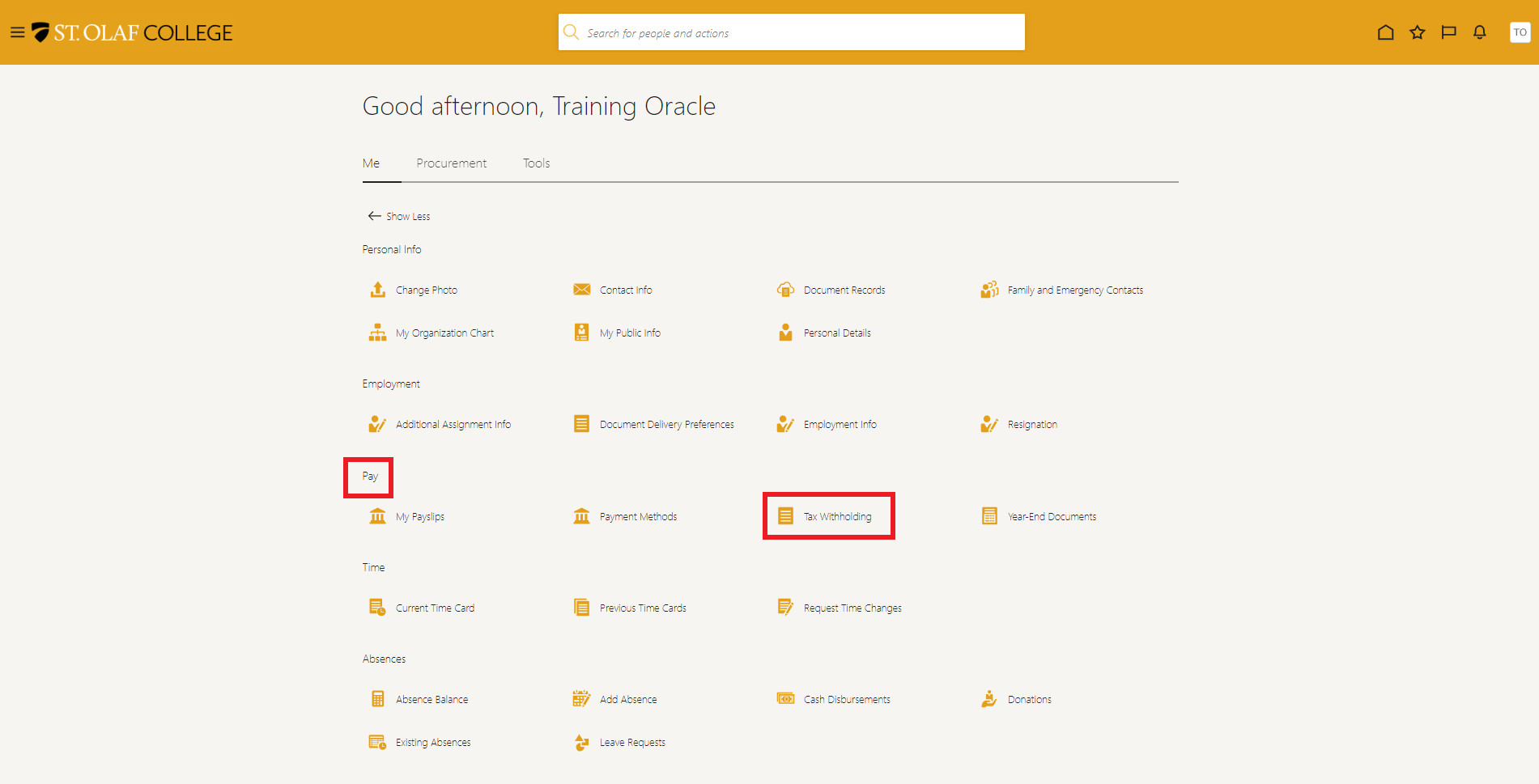
Locate the “Pay” section and select “Tax Withholding.”
Click the pencil icon to view or make changes.
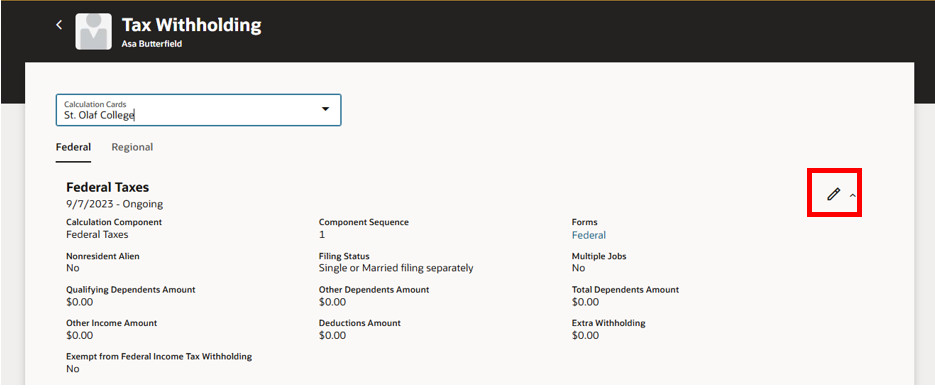
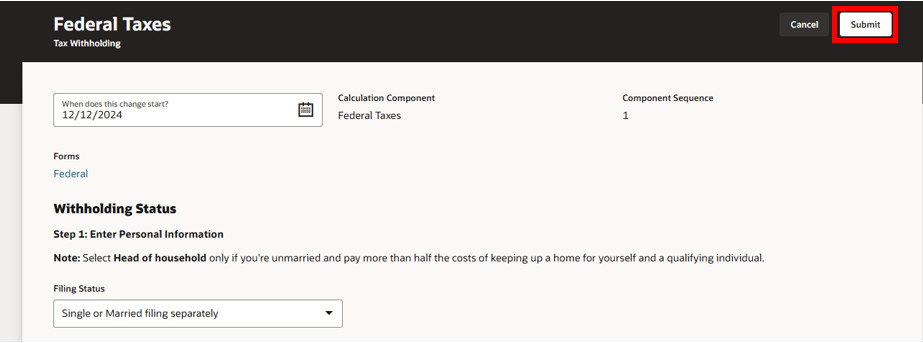
Check the agreement box at the end of the form.
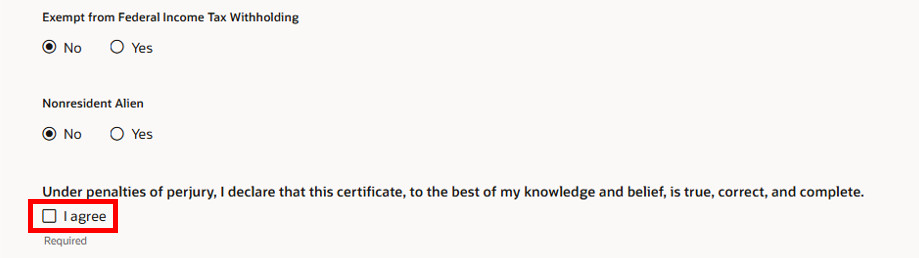
Click “Submit.”
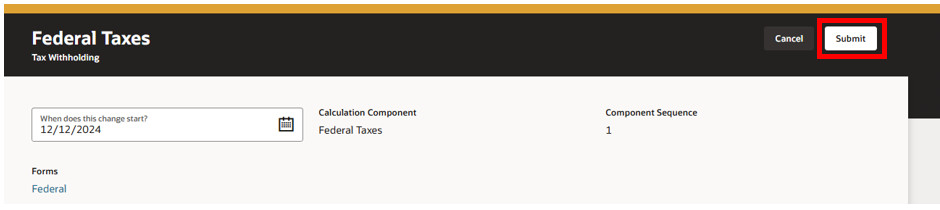
Add or Update the W-4MN
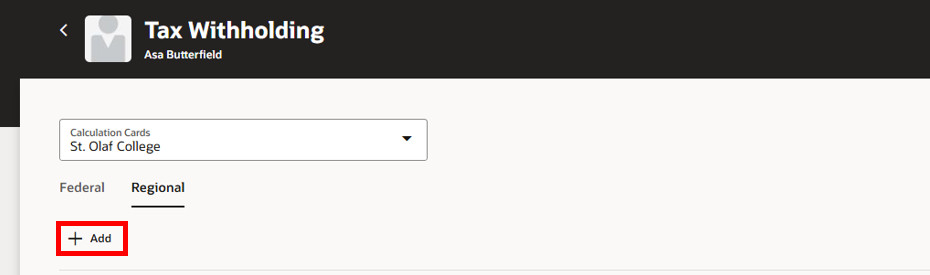
Select the “Regional” tab.
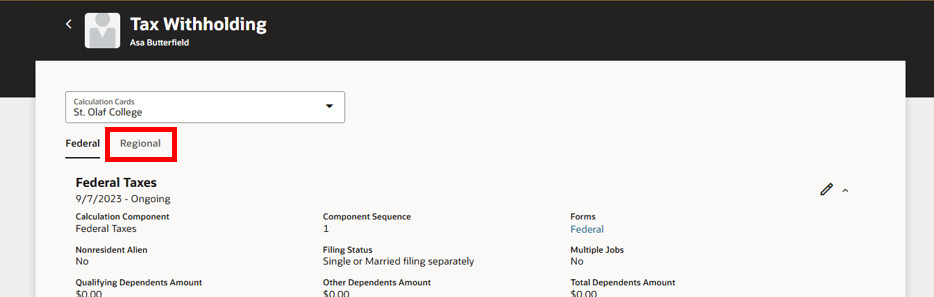
To add a new W-4 click the “Add” button.
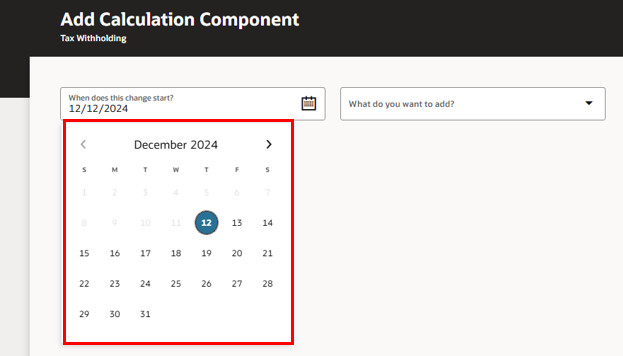
Fill out the first two fields. Under “When does this change start?” specify when the new W-4 should take effect.
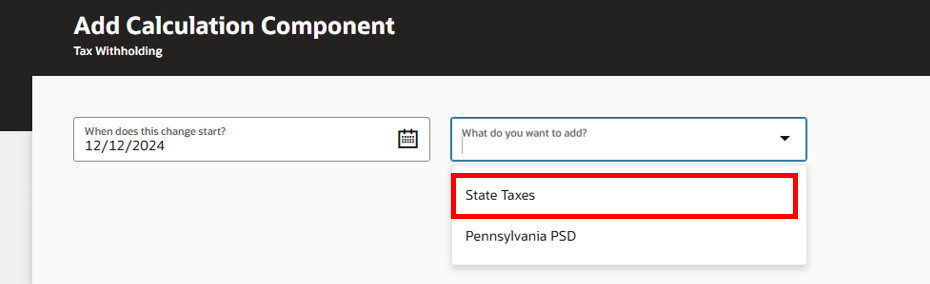
Under “What do you want to add?” click “State Taxes” on the dropdown menu.
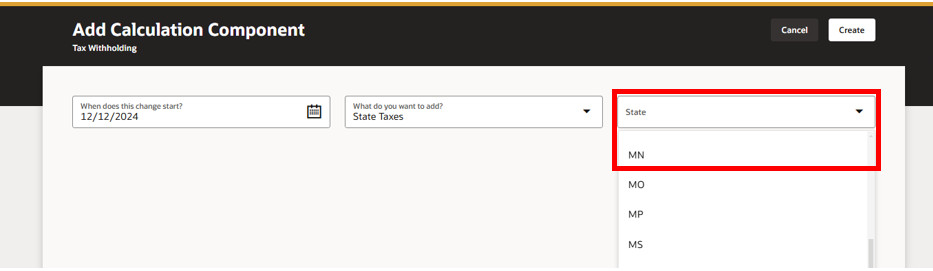
Under “State,” specify the state tax form you are adding.
The dropdown menu for States is a combined menu and search field. Type “MN” into the search field and then click on it. DO NOT select any state other than MN unless you have had a conversation with the Payroll office.
Complete the newly added fields.
Specify your “Filing Status” (i.e., single, married, married, and withholding at a higher single rate, etc.).
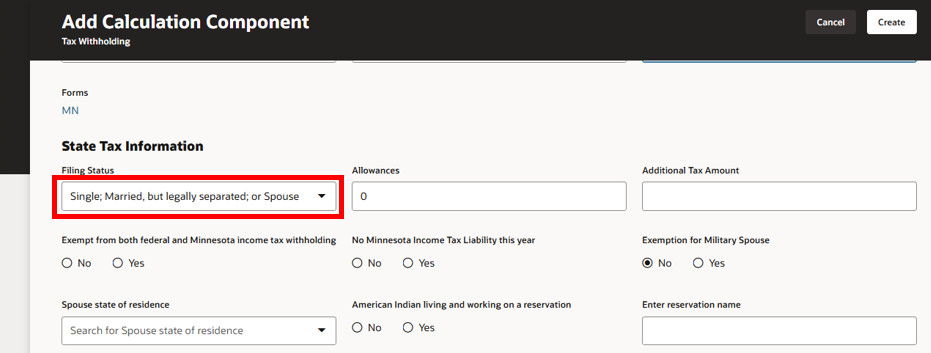
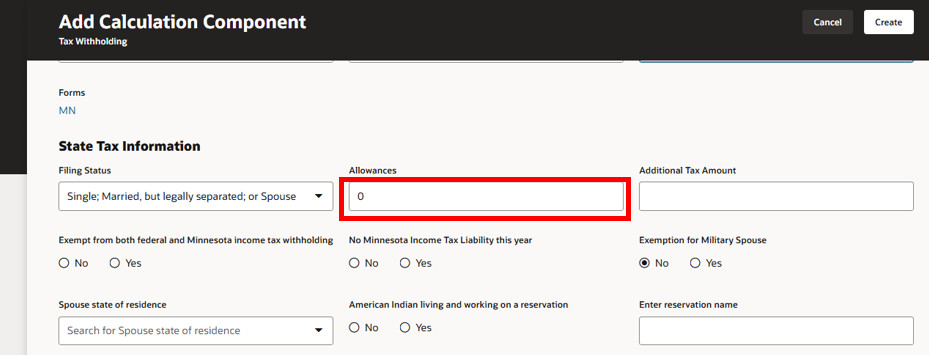
Specify the number of allowances that you will claim. Allowances can vary significantly depending on the state.
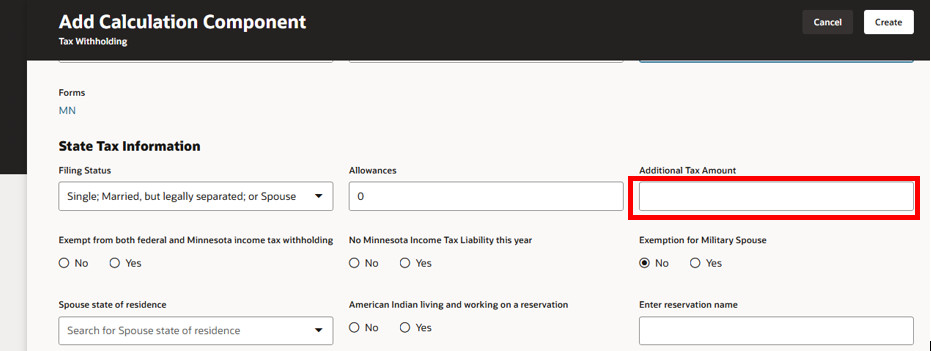
If applicable, specify an “Additional Tax Amount” that you’d like to have taken out of each paycheck. If you do not want an additional amount taken out, leave these fields blank.
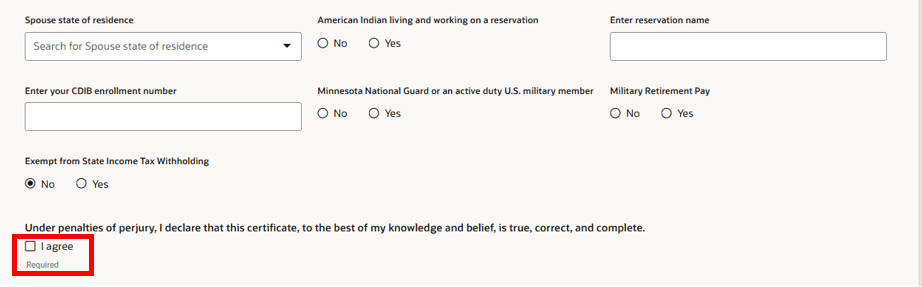
Check the “I Agree” box to indicate your agreement with the statement, “Under penalties of perjury, I declare…”
Click “Create.”
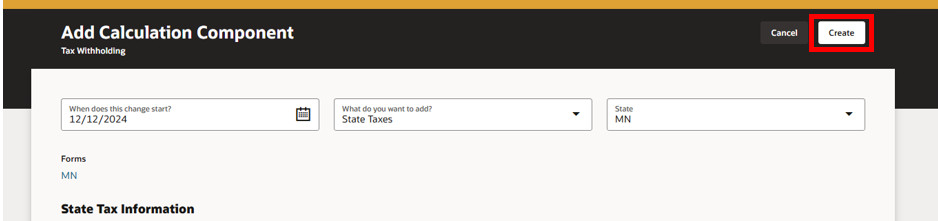
Note: Tax forms vary from person to person, so that field choices will change depending on your tax situation.
Your new tax form will appear on the “Regional” tab of the “Tax Withholding” screen.
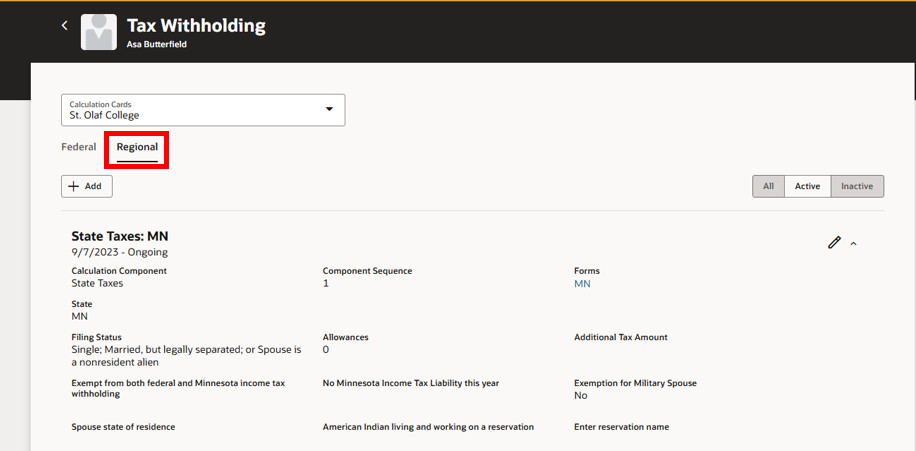
Update an Existing W-4
Go to the “Tax Withholding” screen.
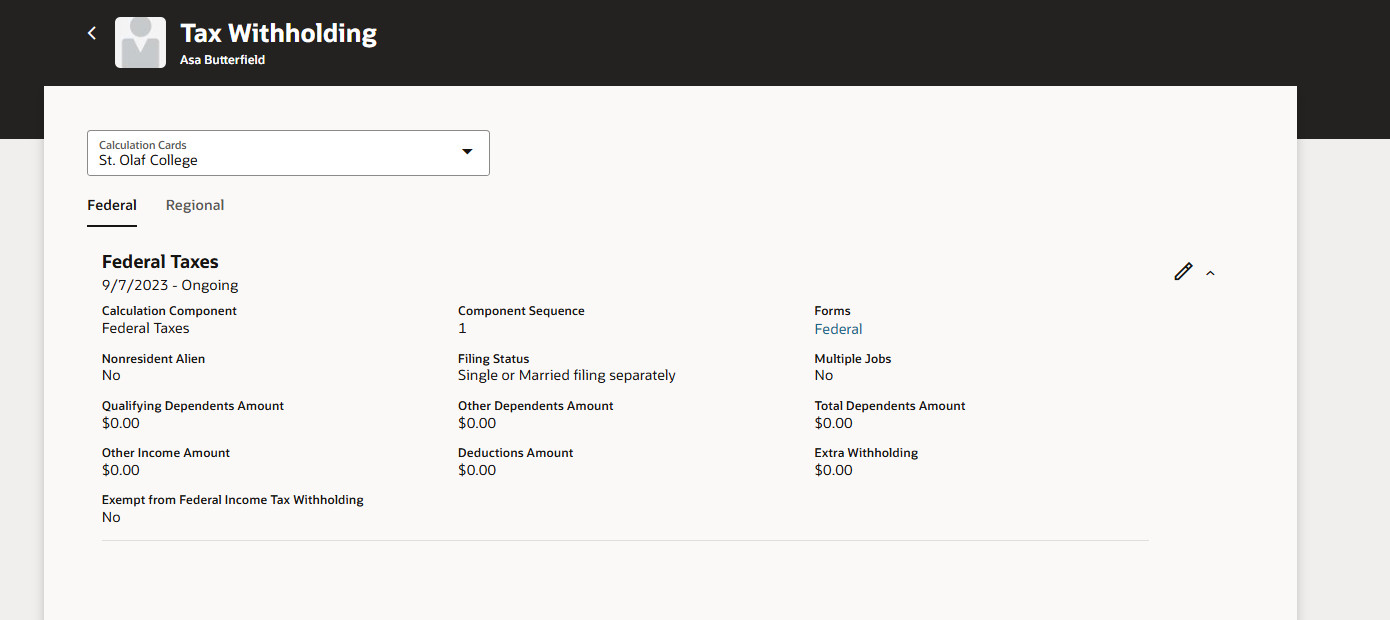
Locate the form you want to change by selecting the appropriate tab. You can change Federal or Regional (State Taxes).
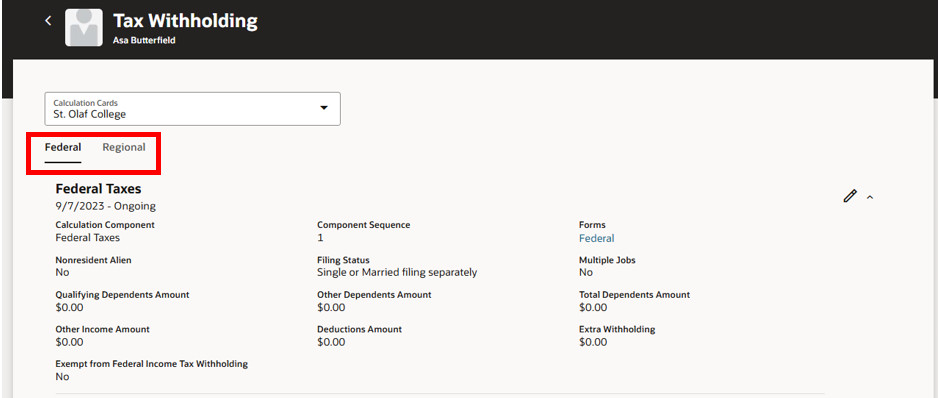
Click the “Pencil” icon.
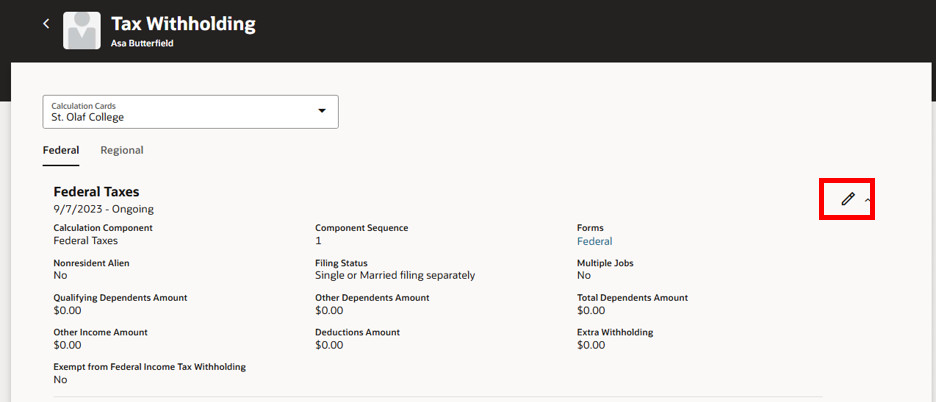
On the next screen, make the necessary changes.
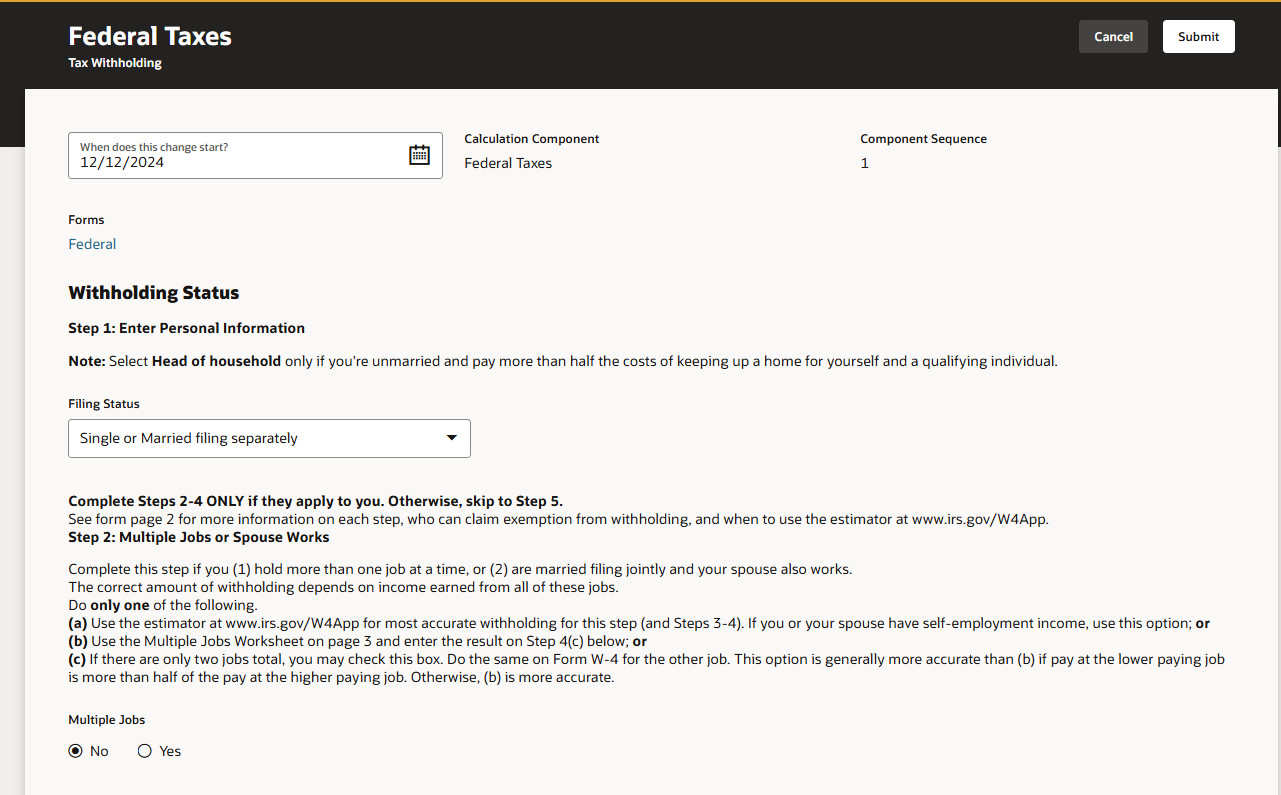
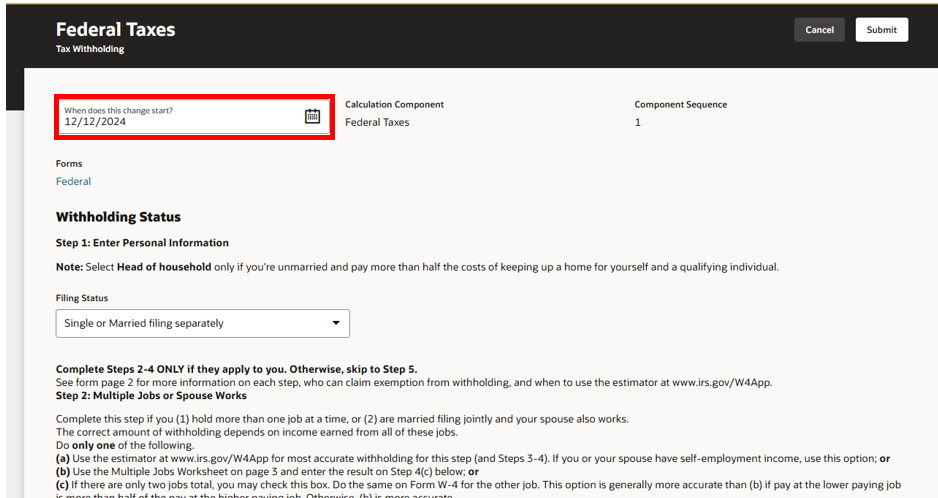
Under “When does this change start?” specify when the change to your tax form should become effective.
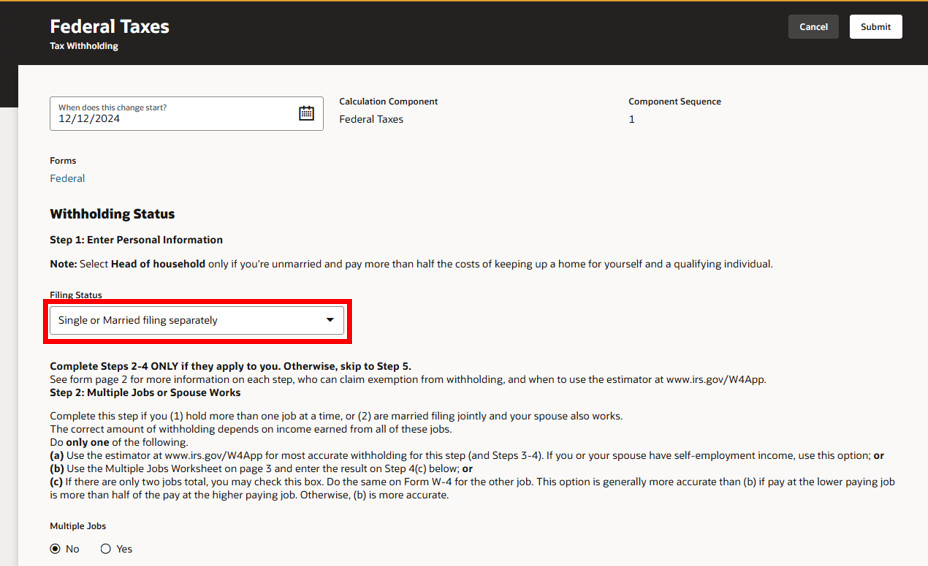
Specify your Filing Status (i.e., single, married, married, and withholding at a higher single rate, etc.). Items in Step 2 or 3 are optional, you or your tax professional will need to know if these are required for your withholding needs.
If applicable, specify an “Extra Withholding” that you would like to have taken out of each paycheck. If you do not want any additional amount taken out, you can leave this field blank.
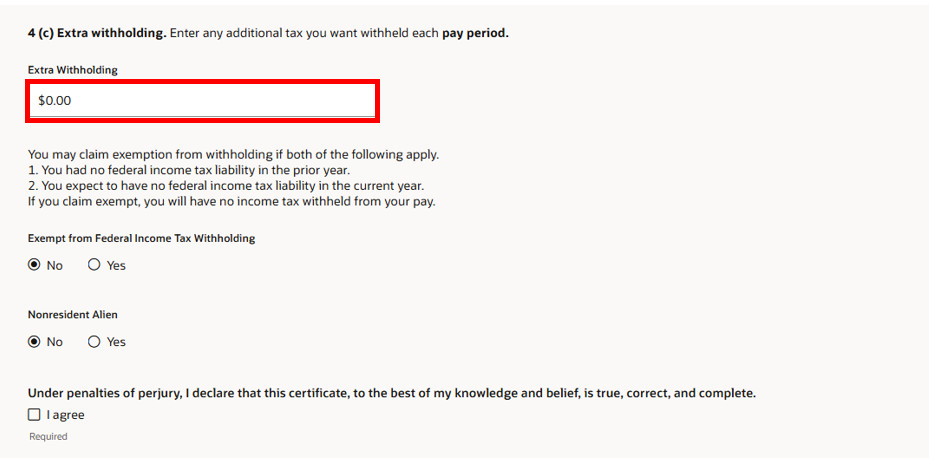
Check the “I Agree” box to indicate your agreement with the statement, “Under penalties of perjury, I declare…”
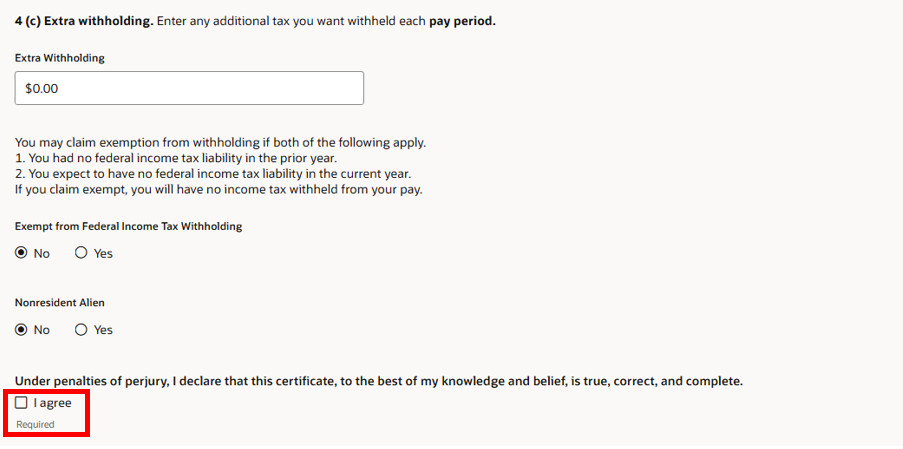
Click “Submit.” Your edited tax form will be reflected on the Tax Withholding screen.