Delegating Approvals – Redwood
Last Updated: 04/16/2026
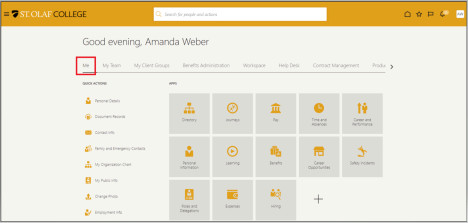
You will use the Roles and Delegations tile to set up any approval delegations. Navigation path: ME → Roles and Delegations
Go to Me. Your dashboard may look different from the dashboards of other employees depending on your role and level of access (security). Select Roles and Delegations.
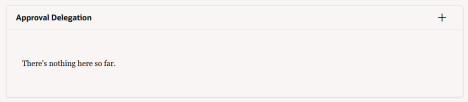
Scroll down to Approval Delegation.
Do not use Role Delegation, this will share all of your sensitive information with the individual. Click the plus sign in the top right corner.
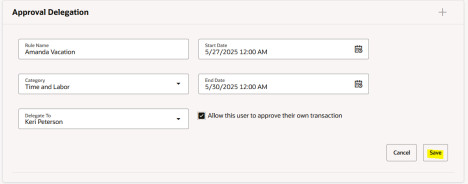
Rule Name- this is your choice. Example, ‘Amanda’s Vacation 2025 Timecards’. Start Date- this is the date you would like any approval delegations to begin.
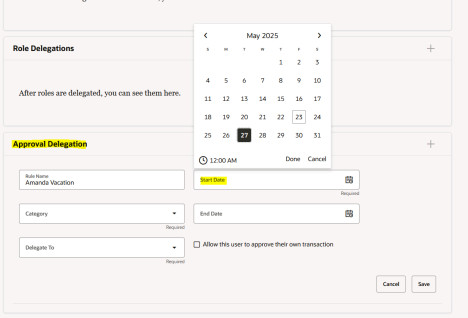
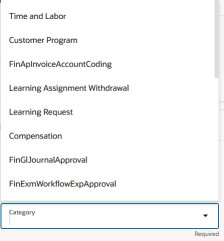
In the category section, you can select the category you want to delegate approvals for.
Some common options are:
- Time and Labor (timecard approvals)
- FinApInvoiceApproval (invoice approvals)
- GlobalAbsenceApproval (time away approvals)
Delegate To- start typing the first name of the person you are delegating to, this will bring up the individual you would like to delegate to.
You can enter an end date if you know the date of your return. You can also select ‘allow this user to approve their own transaction’ if this is someone reporting to you that would need an invoice approved, time card or absence approved.
Select Save.