Direct Deposit – Redwood
Last Updated: 04/16/2026
Navigation Path: Quick Actions → Show More → Payment Methods OR Me → PAY → Payment Methods.
Note: You will not be able to add banking information until you are Active within the system.
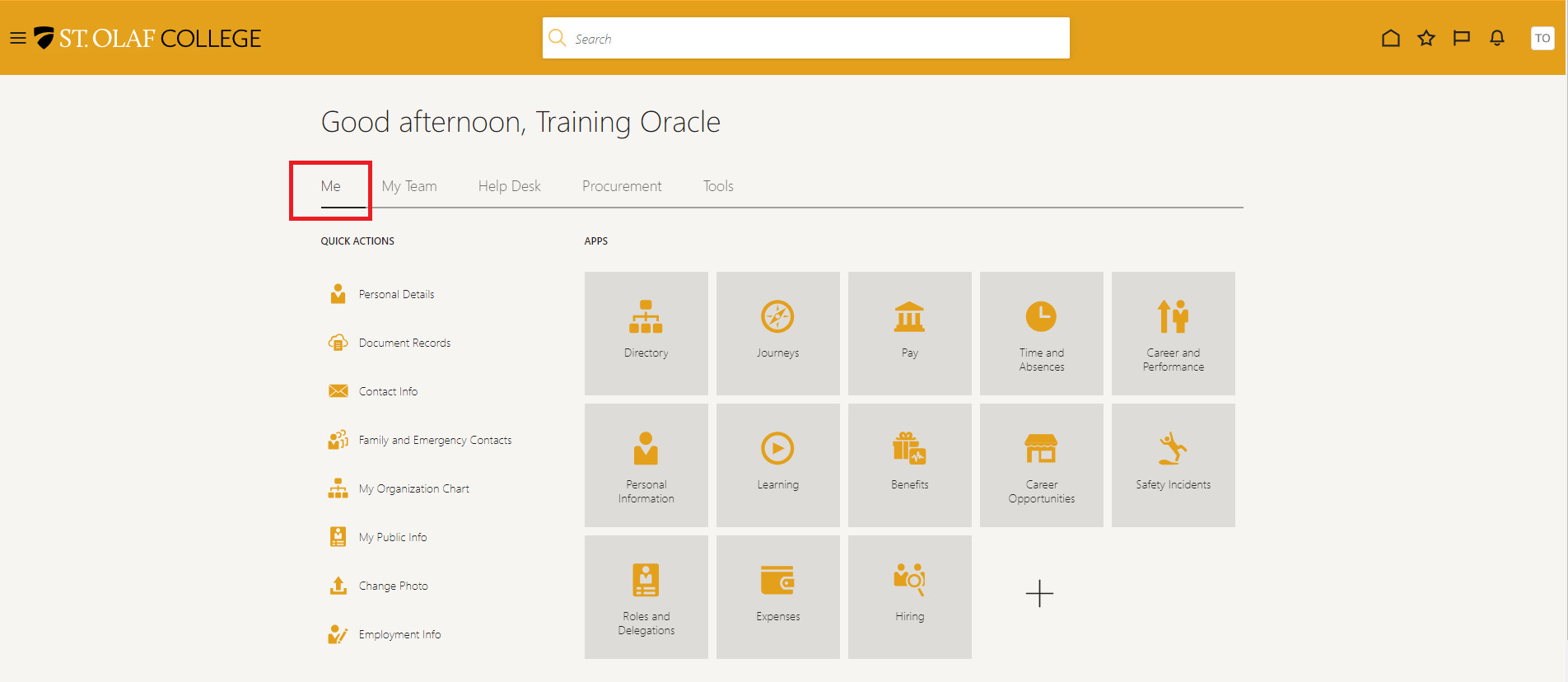
Click on the “Me” tab on your home page.
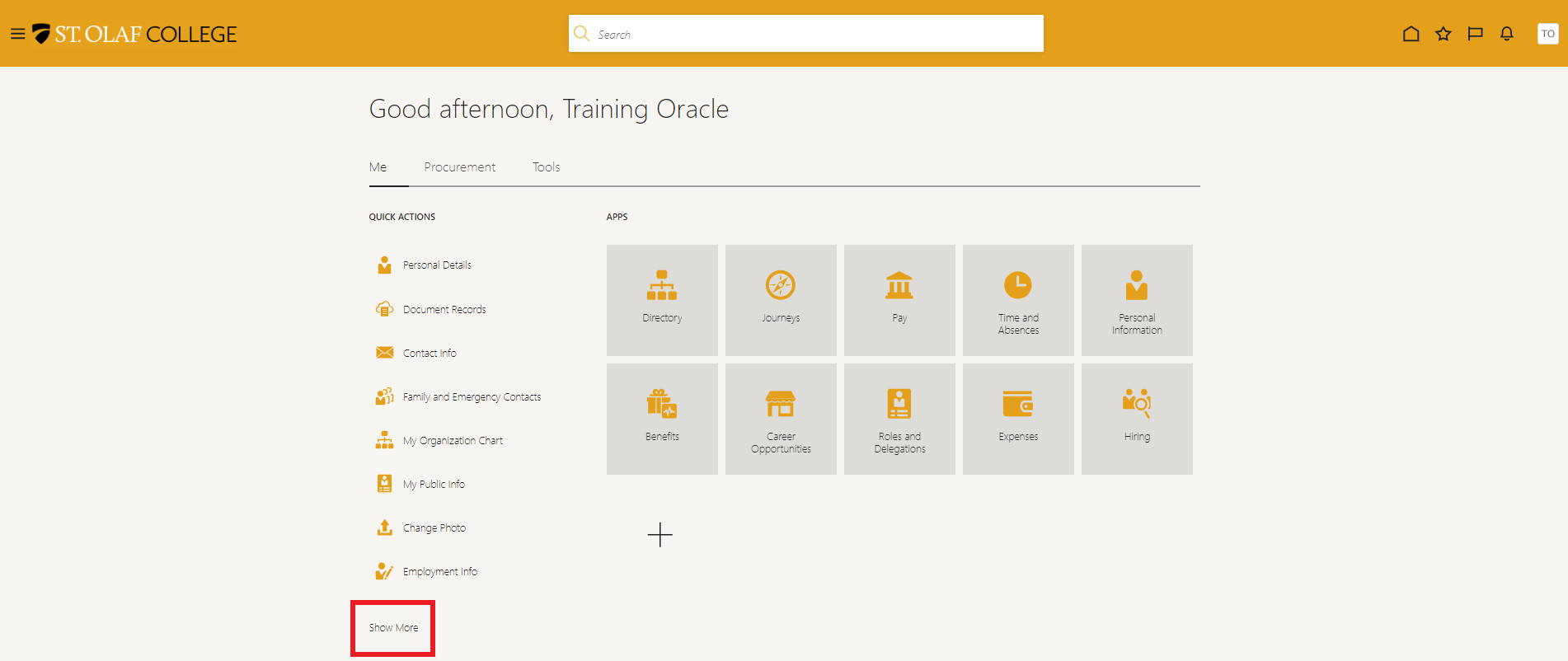
Under the “Quick Actions” list, select “Show More” to see the entire menu.
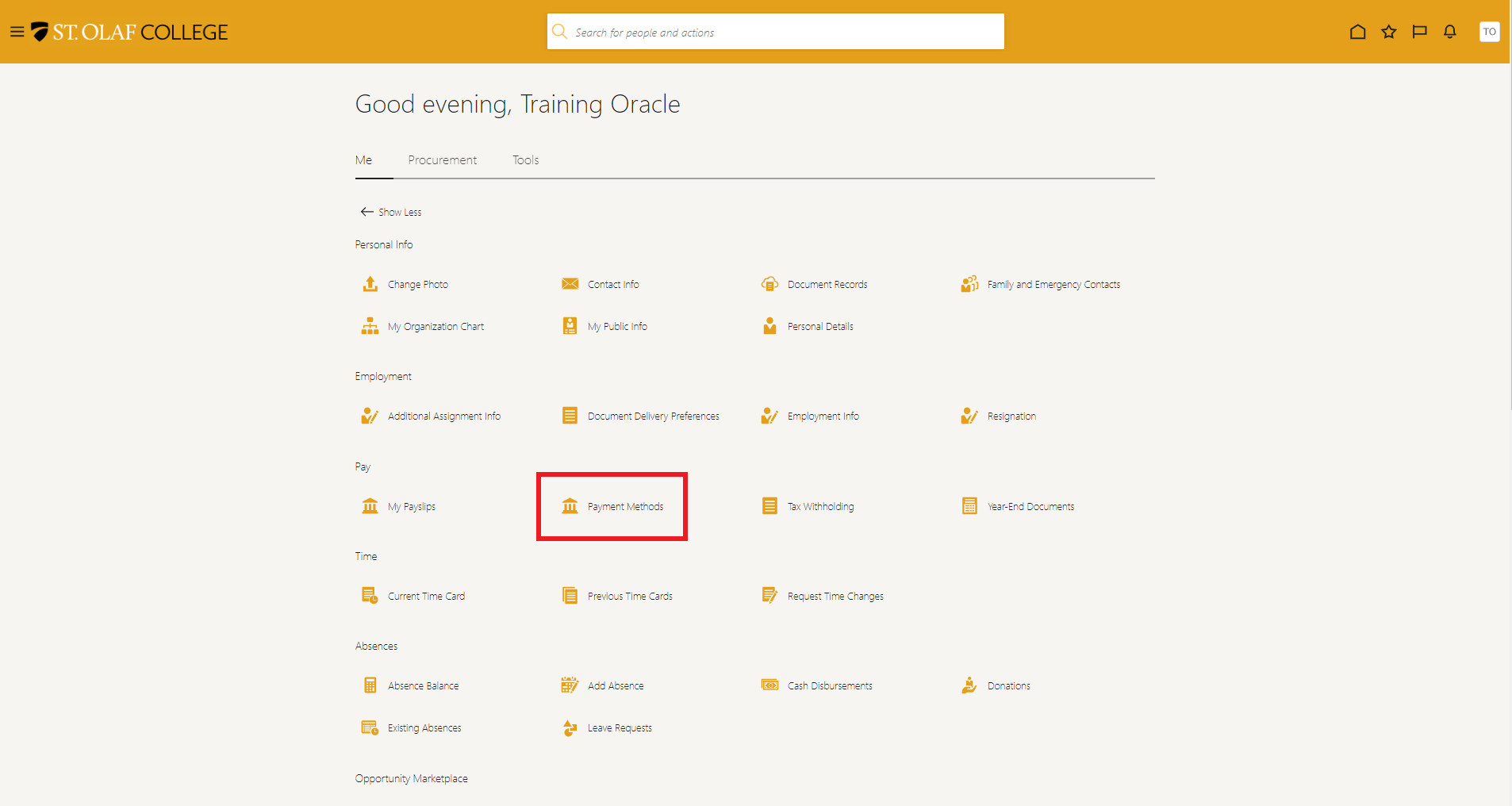
Under the “Pay” header, select “Payment Methods.”
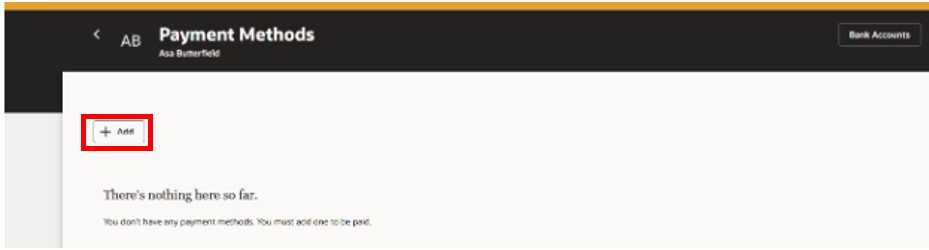
Click the “Add button: on the “Bank Accounts” section of the screen.
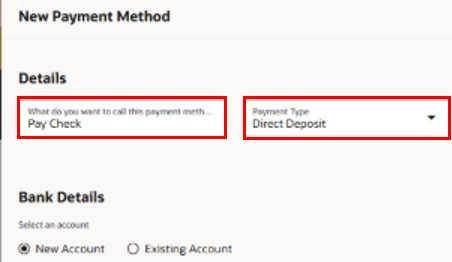
In the “What do you want to call this payment method?” field, give your payment method a name of your choosing(e.g., Checking, Savings, Jane Doe’s Direct Deposit, Direct Deposit, Paycheck Account, etc.).
Select your payment type from the dropdown (Check or Direct Deposit).
Enter your account number, account type (checking or savings), Bank, and Routing number.
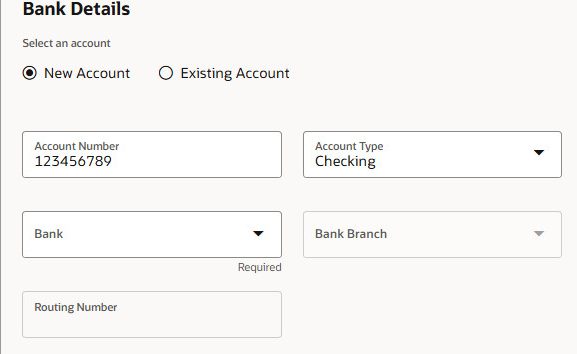
Next to “Account Type,” select your bank account type from the drop-down list. If you can write checks from the account, it is a Checking account. If you cannot write checks, it is Savings.
After completing all the fields, check your entries for accuracy.
Click “Create” on the lower left of the screen.
Your account will now appear on the Payment Methods screen.
Change an Account
Go to the “Payment Methods” screen.
Click the “Pencil” icon next to the account you wish to change.
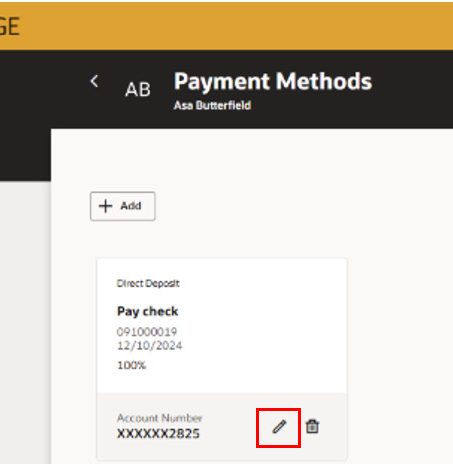
From that edit screen, you can change the existing information.
Add an Account
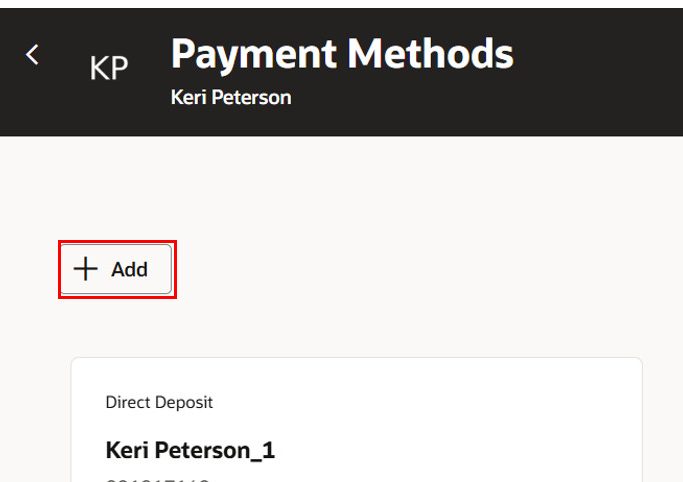
To create an additional account, from the “Payment Methods” screen click on the “Add” button to add new account information. Use steps that you used to “Add a New Direct Deposit Account.”
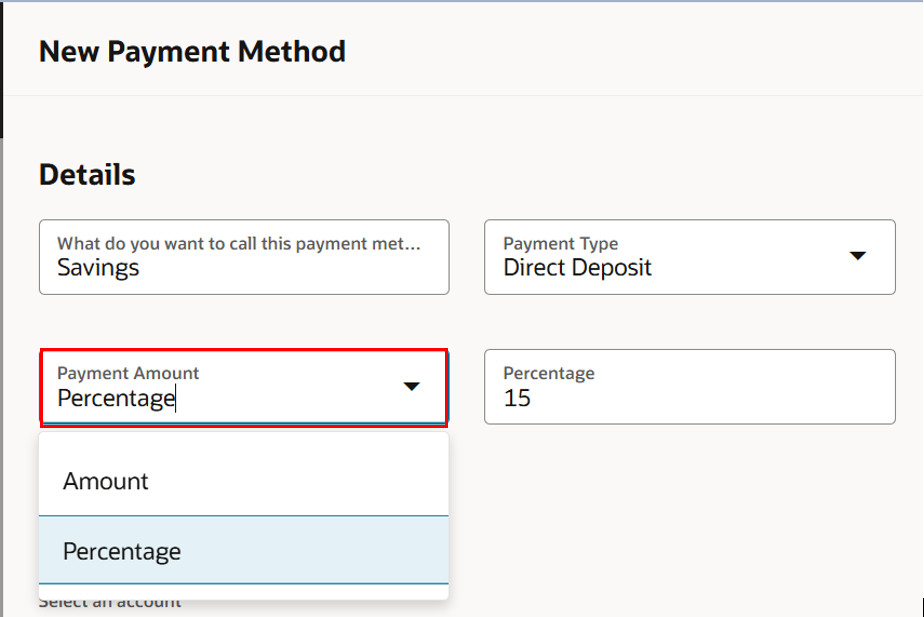
You will be able to delegate either a specific amount of percentage of your pay check to be deposited in the additional account.
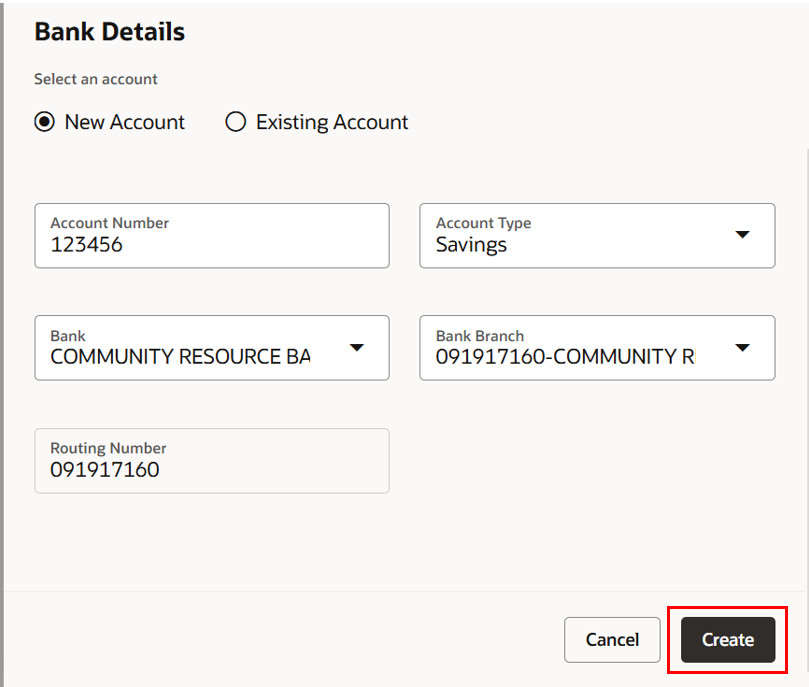
Enter the account information and select “Create.”
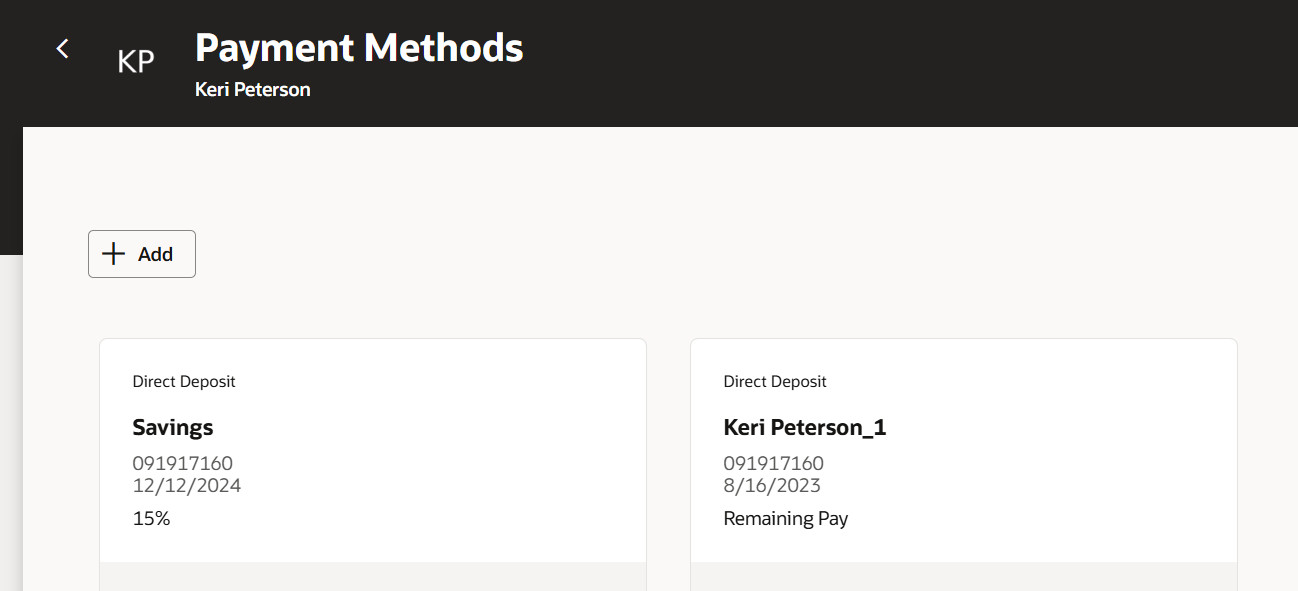
You will see both accounts and the percentages of pay on your Payment Methods screen.
Inactivate an Account
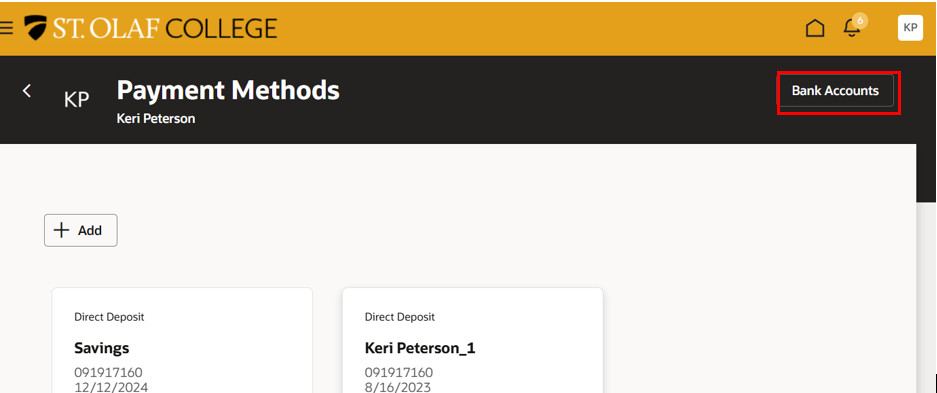
If you have an existing account in the system that is no longer active, click on “Bank Accounts.”
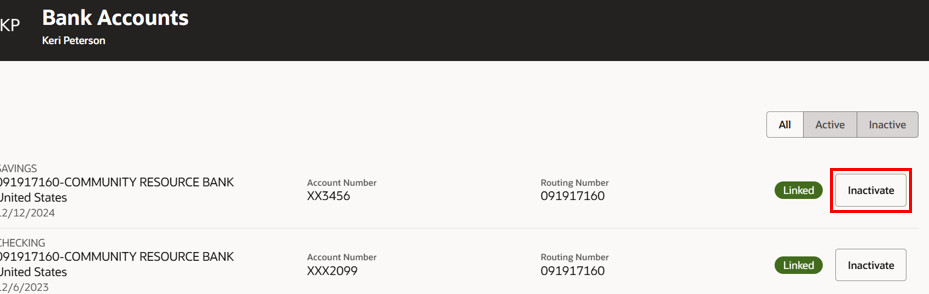
Select “Inactivate” next to the account that you no longer use.
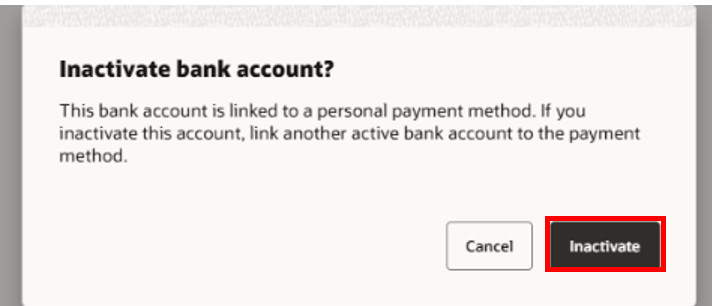
Confirm inactivation of account.
NOTE: Your changes are reflected immediately on the “Payment Methods” screen.
Remove an Account
On the “Payment Methods” screen, in the section labeled “My Payment Methods” find the direct deposit account you wish to delete.
Click on the “Trash Can” icon.
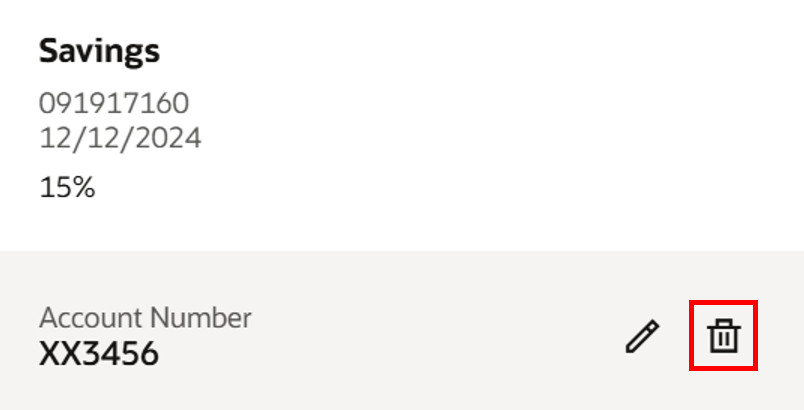
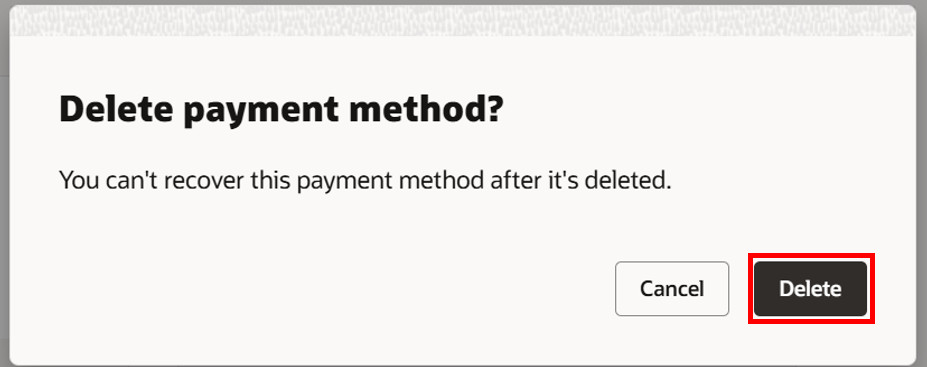
Confirm deletion of the payment method. Your account is now removed from the “Payment Methods” page.