Work Award Balance – Redwood
Last Updated: 04/16/2026
Navigation: From your main Oracle screen, click “Work Award Balance.”
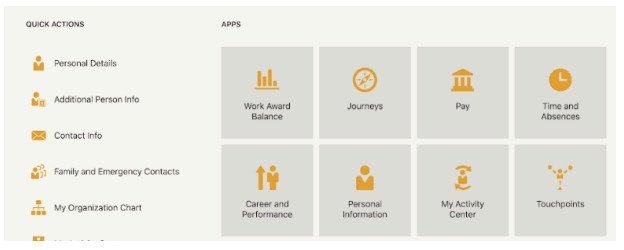
From the top of the following screen, enter the beginning date of the current academic year through your last check date.
For example, 2024-2025 was 09-05-2024.

Note: Before proceeding: there may be students that are no longer working for you that are displayed. If a student has worked for you or one of your direct reports and/or are still in an active role of any kind, they will still display on the report. We are working to update this feature if possible in the future. If you do have a student that has not worked for you or your direct reports at any point, please reach out to Payroll if needed to look into further.
Navigation: From your main Oracle screen, click “Supervisor Student Work Study Report”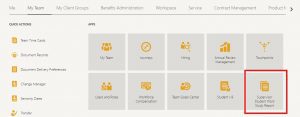
The dates prompted next will be the first day of the academic year, through today or the most recent check date.
Example: AY26-27: start date= 09-10-2026

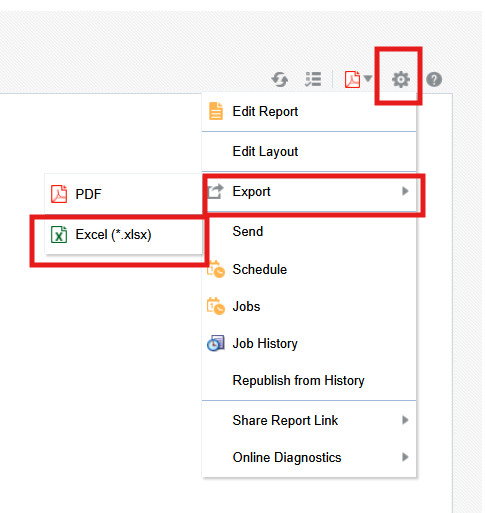
You are also able to export the report in excel to help you better sort the report.